
This website uses cookies so that we can provide you with the best user experience possible. Cookie information is stored in your browser and performs functions such as recognising you when you return to our website and helping our team to understand which sections of the website you find most interesting and useful.
Font Size:
Introduction
Key Features
Uniqueness
Frequently Asked Questions
Open-Source?
Registration Needed?
Installation Required?
AI-empowered?
Specifications
URL:
Country or Region:
Author(s):
License:
Operating System(s):
Language(s):
Registration Needed:
Installation Required:
Video Demonstration
User Guide
This guide outlines how to install the Everything search utility, filter searches, create custom filters, and use regular expressions for advanced file discovery. (Reference Version: 1.4.1.1026)
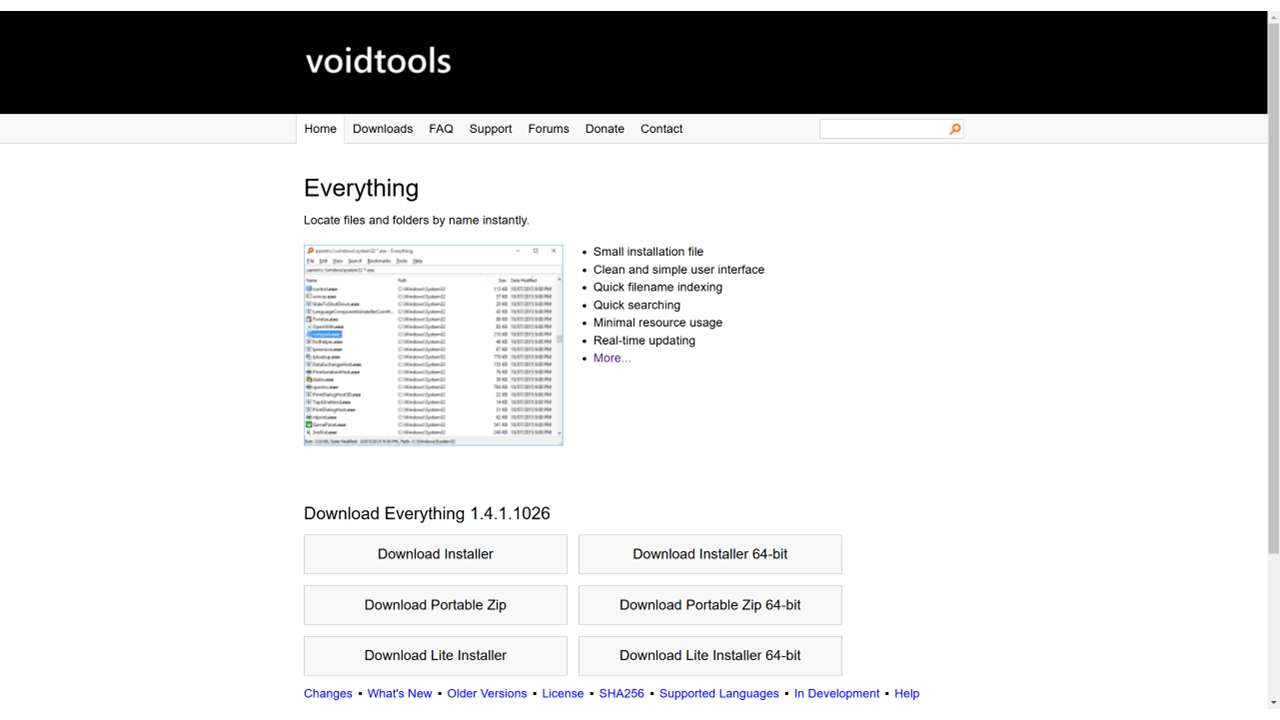
Download and Install Everything
| a. | Navigate to the website: https://www.voidtools.com/; |
| b. | Select the installer version that matches your operating system; |
| c. | Run the installer and follow the on-screen instructions to complete the installation; |
| d. | Launch the Everything software. |
Filter File Searches
| a. | Open the Everything application; |
| b. | Click Search in the menu bar and select Advanced Search...; |
| c. | Enter keywords to include in the search results in the text field; |
| d. | Adjust other filters such as size range, path, or attributes as required; |
| e. | Click the OK button to execute the search. |
Create and Apply Custom Filters
| a. | Click Search in the menu bar and select Organise Filters...; |
| b. | Click New... in the Organise Filters window; |
| c. | Enter the name PowerPoint in the Edit Filter window; |
| d. | Tick the Match diacritics checkbox; |
| e. | Enter ext:pptx;ppt in the Search field; |
| f. | Enter Powerpoint in the Macro field; |
| g. | Click OK to confirm the new filter; |
| h. | Click OK in the Organise Filters window to save all changes; |
| i. | Click Search in the menu bar and select Powerpoint from the list to apply the filter. |
Search Using Regular Expressions
| a. | Open the Everything application; |
| b. | Click Search in the menu bar and ensure Enable Regex is ticked; |
| c. | Enter the required regular expression in the main search bar; |
| d. | Review the results that update according to the expression entered. |
| Regex Syntax: |
a|b Matches a or b gr(a|e)y Matches gray or grey . Matches any single character [abc] Matches a single character a, b or c [^abc] Matches any single character except a, b or c [a-z] Matches a single character in the range a to z [a-zA-Z] Matches a single character in the range a to z or A to Z ^ Matches the start of the filename $ Matches the end of the filename ( ) Defines a marked subexpression \n Matches what the nth marked subexpression matched, where n is a digit from 1 to 9 \b Match word boundaries * Matches the preceding element zero or more times ? Matches the preceding element zero or one times + Matches the preceding element one or more times *? Lazily matches the preceding element zero or more times +? Lazily matches the preceding element one or more times {x} Matches the preceding element x times {x,} Matches the preceding element x or more times {x,y} Matches the preceding element between x and y times \ Escape special character |
Educational Scenarios
Educators' Perspectives
Learners' Perspectives